
Help centre
Everything you need to set up StoreOnCall and get value from it. If something here does not answer your question, reply to any email from us.
Getting started
StoreOnCall watches your Magento or Adobe Commerce store and tells you, in plain words, when customers cannot buy or when something behind the scenes is about to cause that. It works in two ways:
- From outside: the free scan and the checkout test behave like a shopper. They open pages, add a product to the cart and reach the payment step. They never place an order.
- From inside: a small read-only plugin reports every 5 minutes on background jobs (cron), indexes, message queues, caches, orders and payment problems.
Setup takes four steps: add your store, connect the plugin (about 10 minutes for a developer), choose where alerts go, and turn on the checkout test. The dashboard shows a checklist until all of it is done.
Setup, step by step
When you add a store, the dashboard starts a setup guide that walks you through everything below, one screen at a time. These recordings are from the real dashboard with a test store. The terminal screens are animations of what you will see; lines marked "example" vary a little between Magento versions.
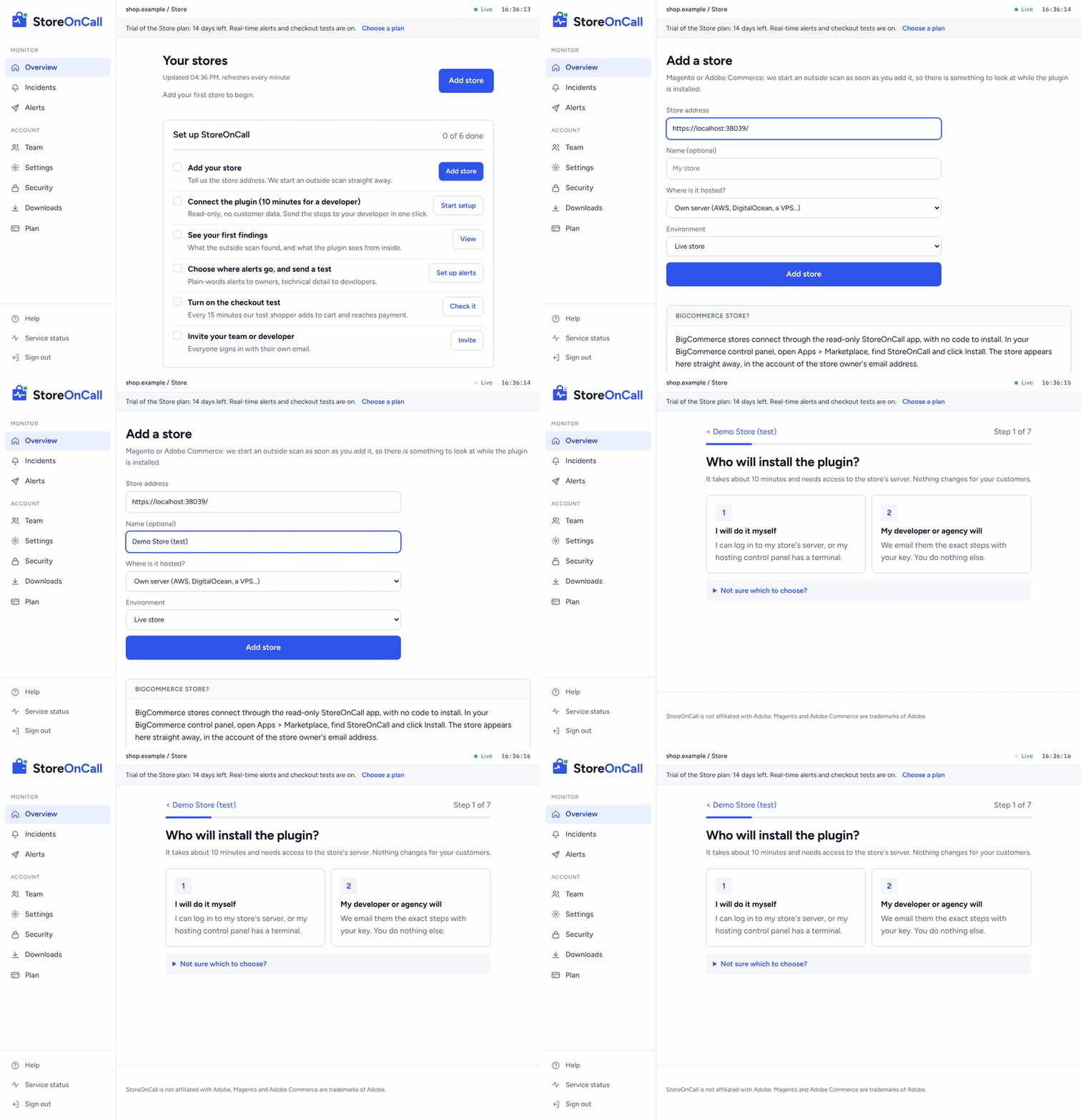
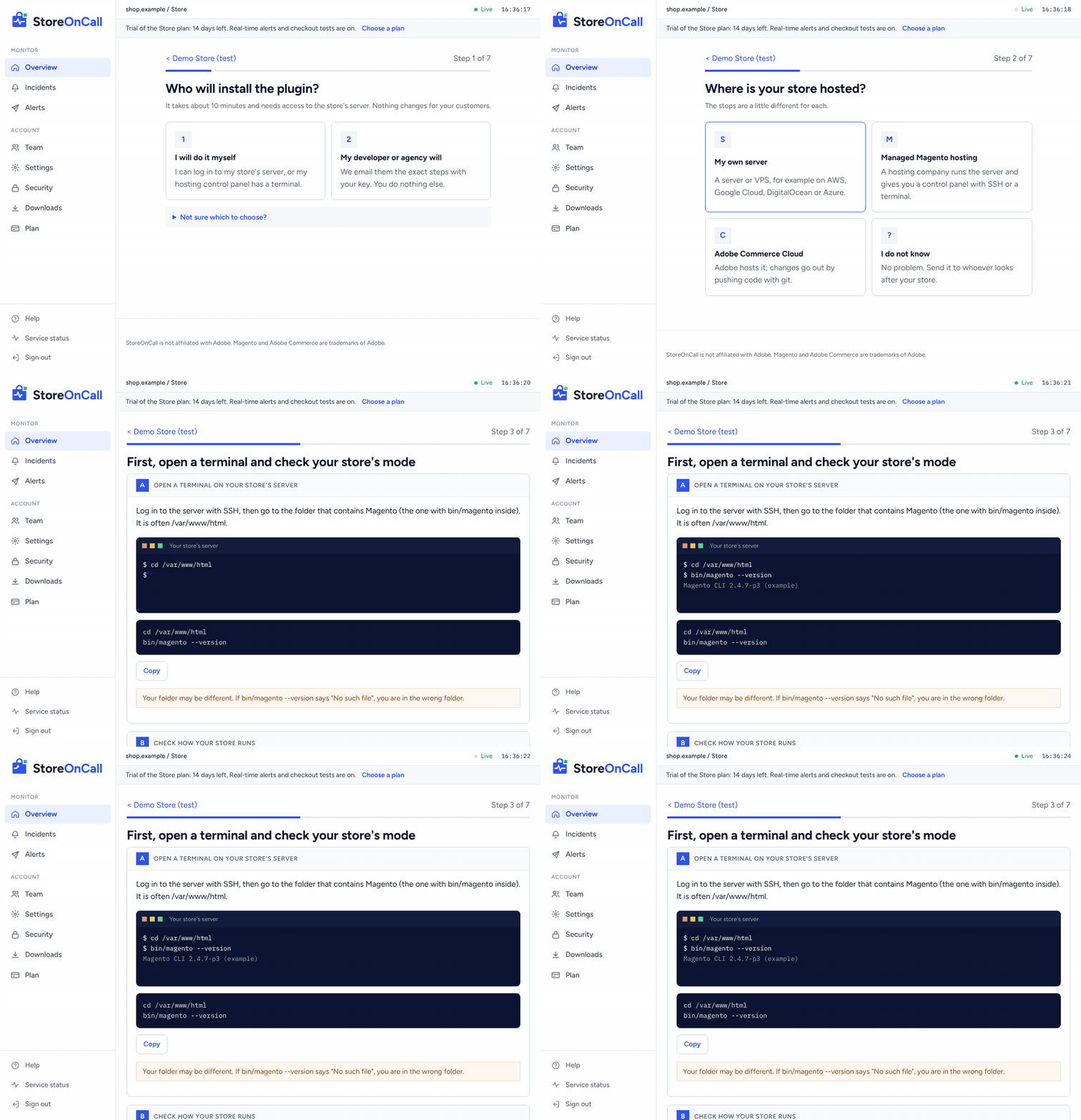
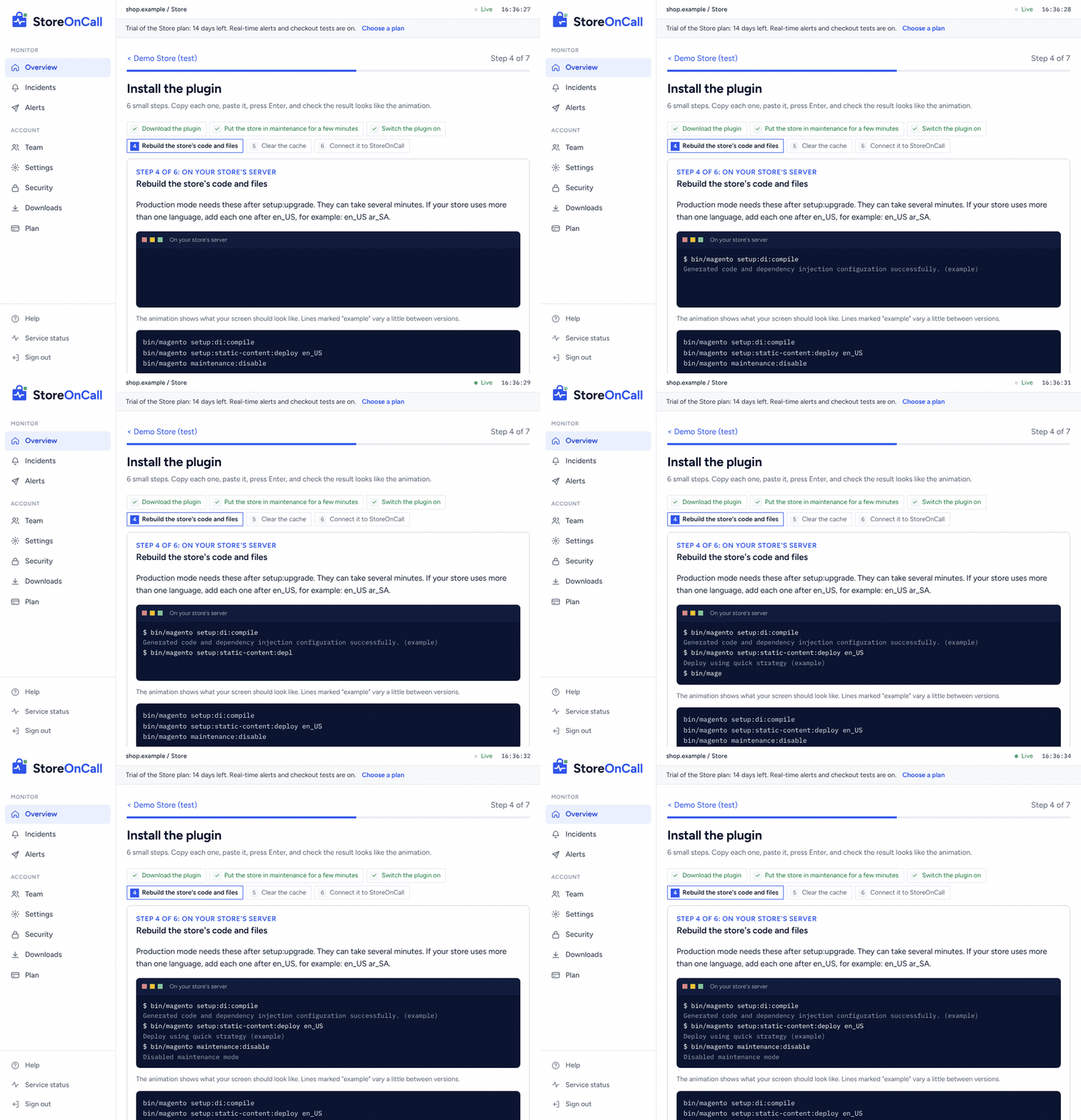
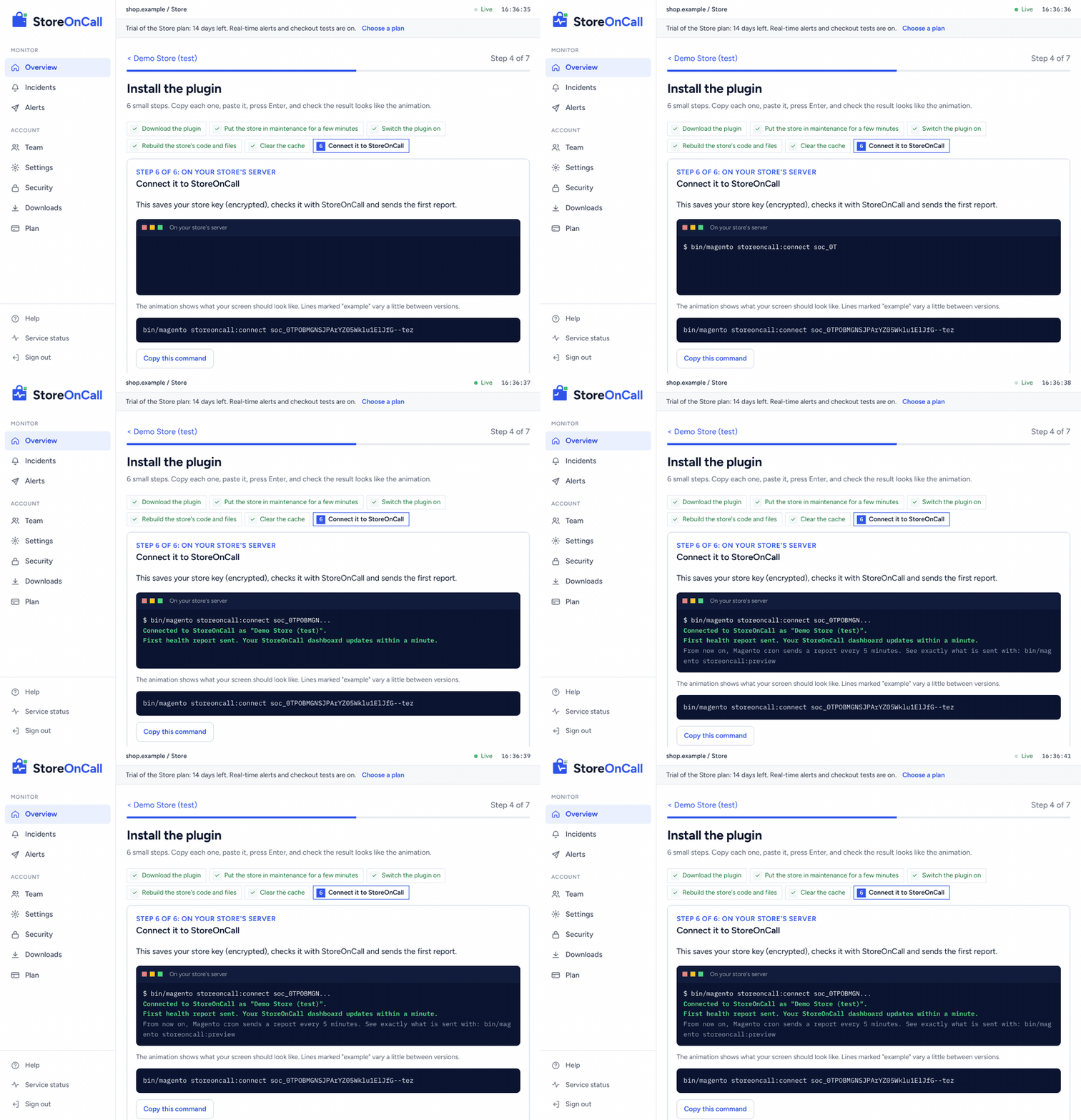
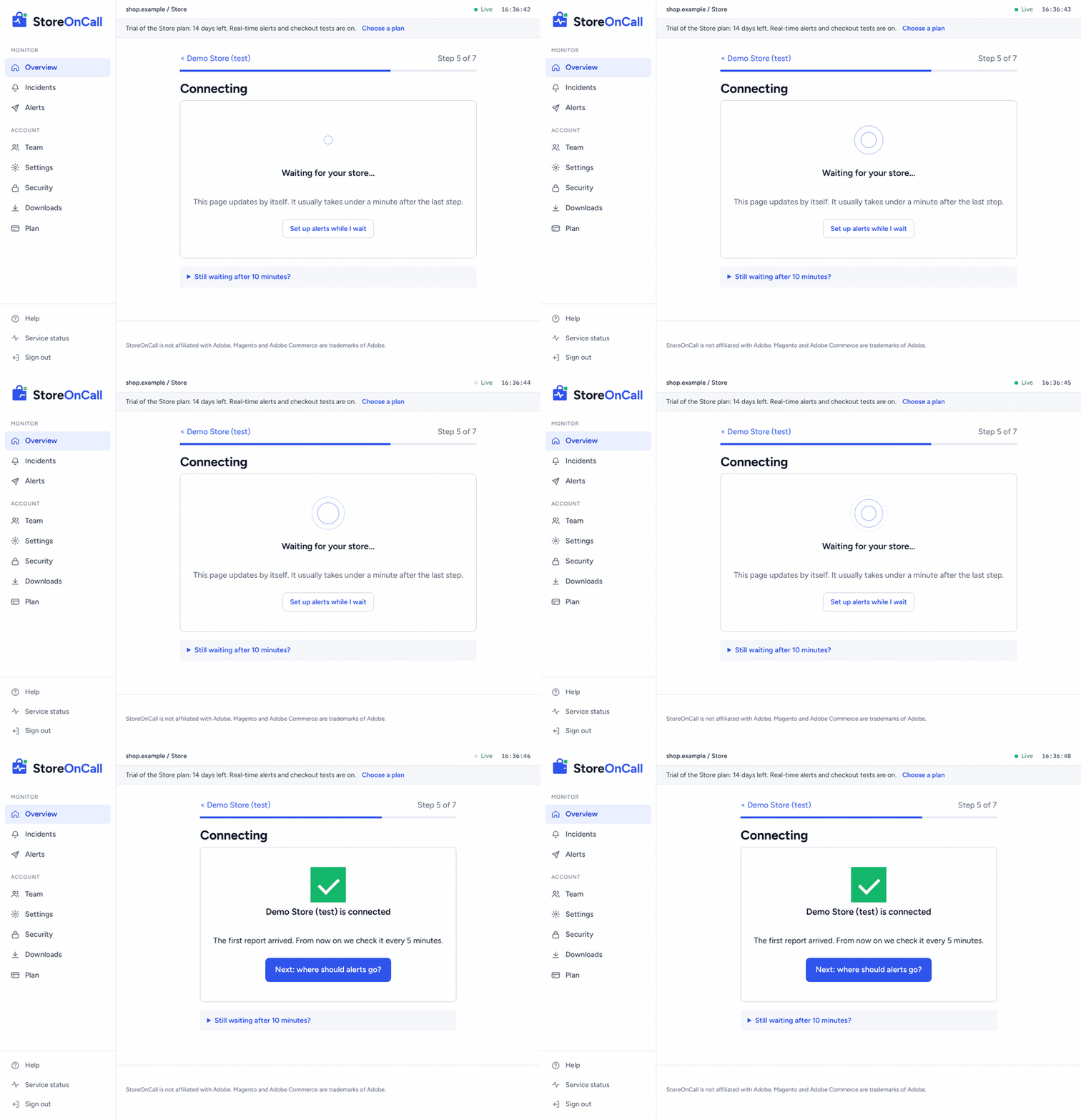
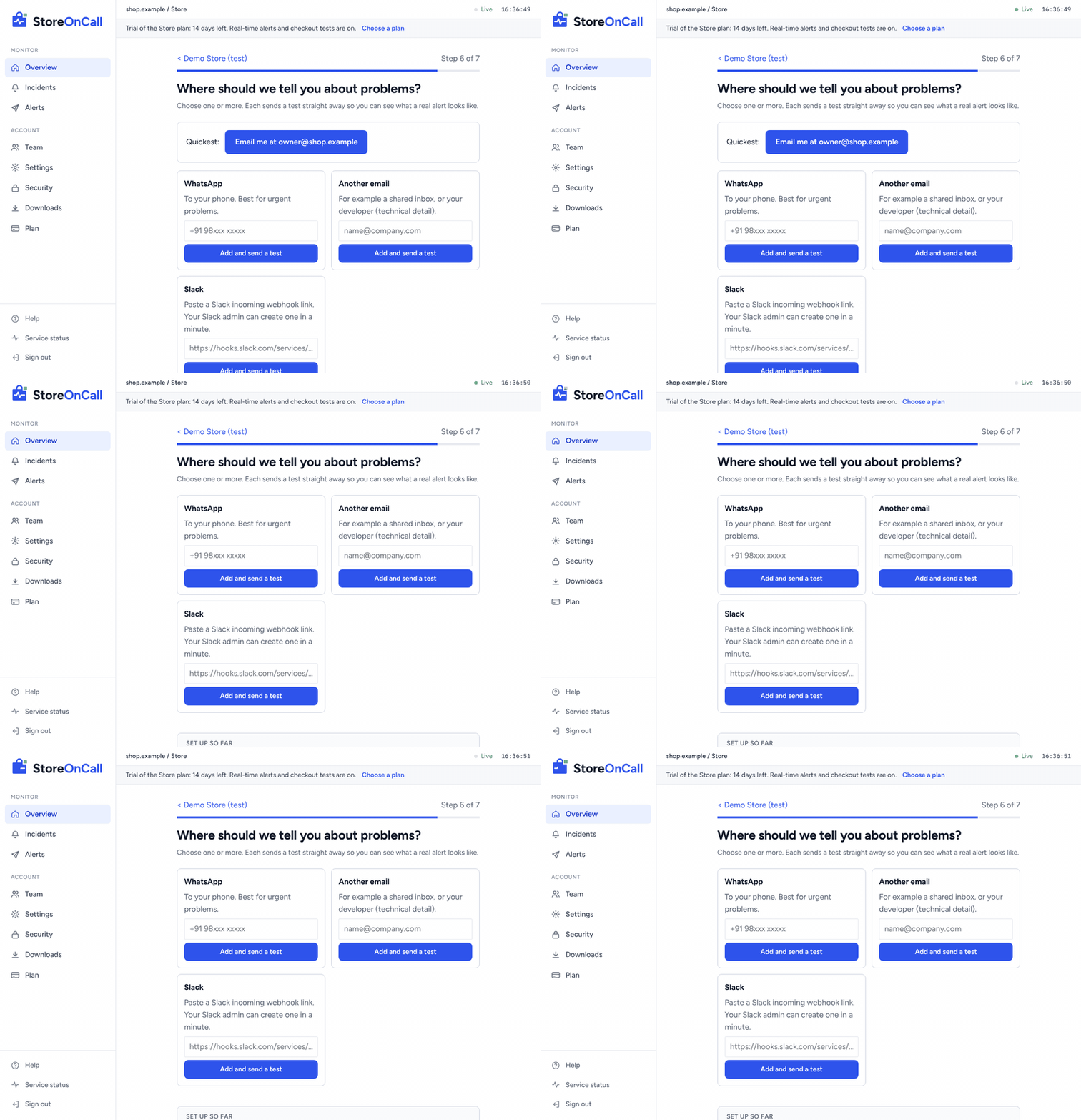
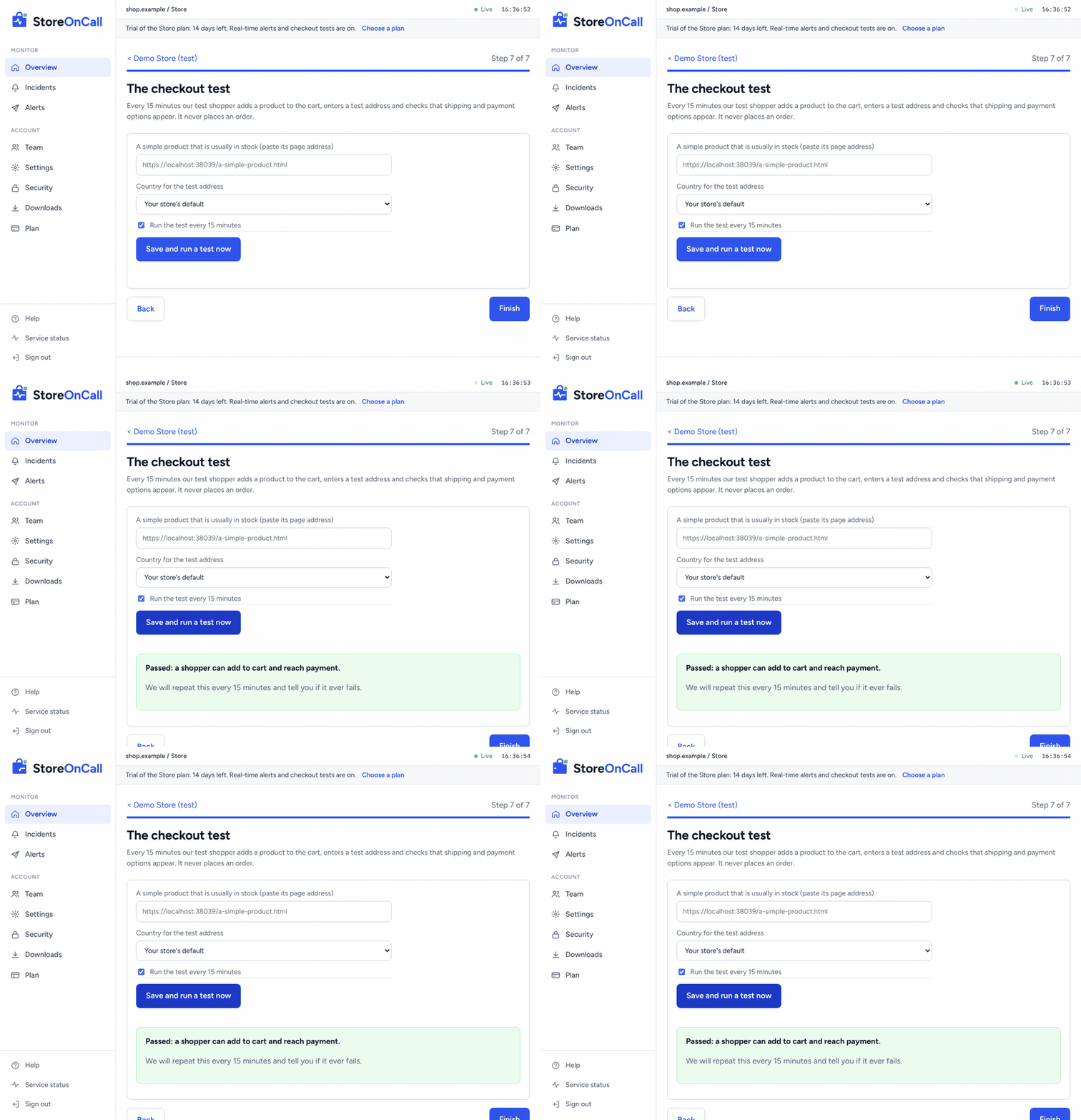
Install the plugin
Requirements: Magento Open Source or Adobe Commerce 2.4, PHP 8.1 or newer, Magento cron running, and outbound HTTPS from the server to StoreOnCall. We suggest installing on staging first.
composer require storeoncall/module-agent
bin/magento maintenance:enable
bin/magento module:enable StoreOnCall_Agent
bin/magento setup:upgrade
bin/magento setup:di:compile
bin/magento setup:static-content:deploy en_US
bin/magento maintenance:disable
bin/magento cache:flush
bin/magento storeoncall:connect YOUR_STORE_KEY
That is for production mode, which most live stores use (check with bin/magento deploy:mode:show). Add every language your store uses after en_US. In developer or default mode, leave out the maintenance, compile and static-content lines. If someone normally deploys changes for you, send it to them instead so it goes out with their next deployment.
Your store key is shown once when you add the store. If you lose it, open the store in the dashboard and choose Install steps and key, then Get a new key. The old key stops working straight away.
Useful commands:
bin/magento storeoncall:status | Shows the key in use, the last report, and whether StoreOnCall can be reached. |
bin/magento storeoncall:preview | Prints the exact report the plugin would send, without sending it. |
bin/magento storeoncall:send | Sends a report now. |
Not your job to install? From the connect page, use Send to my developer. We email them the exact steps with your key, and their replies come to you.
Adobe Commerce Cloud
- On your machine, in the project:
composer require storeoncall/module-agent, thenbin/magento module:enable StoreOnCall_Agent. - Commit
composer.json,composer.lockandapp/etc/config.php, and push to staging first. - In the Cloud Console, open the environment, then Configure environment, Variables, Create variable. Name it
env:STOREONCALL_KEY, paste your store key as the value and tick Sensitive. Adobe Commerce Cloud passes it to the plugin asSTOREONCALL_KEY, so nothing secret goes into your repository. - Repeat the variable for production when staging looks good.
BigCommerce
BigCommerce stores connect through the read-only StoreOnCall app, with no code and no developer. BigCommerce is in early access: the app is installed with a private link while it waits for the BigCommerce marketplace.
- In your BigCommerce control panel, open the StoreOnCall install link (or Apps > Marketplace, once listed) and click Install.
- BigCommerce asks you to allow read-only access to orders and store information. Confirm.
- The app says "StoreOnCall is connected". Click Open my StoreOnCall dashboard: it signs you in, in a new tab, as the store owner's email address. Alerts go to that email until you add more places under Alerts.
What is watched: every 5 minutes, your orders compared with what is normal for that hour and day (learned from up to four weeks of past orders when you install), and each payment method's orders that end up Awaiting Payment, Declined or Cancelled. On paid plans, a test shopper goes through checkout every 15 minutes: it adds a product to a cart, enters a test address, checks shipping options and payment methods appear, then deletes the cart. It never pays. Choose the test product and the test address country on the store page.
What does not apply: the Magento-only checks (cron, indexes, queues, caches, order emails). BigCommerce runs those parts for you.
Your team: staff who open the app from BigCommerce are added to your StoreOnCall account with developer access.
Removing it: remove the app under Apps > My Apps. Reading stops at once and no alert is sent; the store's history stays until you delete the store in StoreOnCall. Installing again picks up where it left off.
What the plugin sends
Only counts, statuses, job codes and totals: how many cron jobs failed, which indexes are out of date, how many orders came in each hour and their total value, how many orders per payment method are stuck waiting for payment, which setting paths changed (never their values), and the list of installed extensions with versions.
It never sends customer names, emails, addresses, phone numbers, IP addresses or payment details. Our server checks every report and refuses anything that looks like personal data before it is stored. In the dashboard, Data the plugin sent shows the last reports exactly as received.
The plugin only reads from the database (SELECT queries) and only makes outbound calls. It adds no pages, no front-end code and no admin users.
Alerts
Alerts can go to email, Slack, Telegram, PagerDuty, Microsoft Teams, WhatsApp (paid plans) or any webhook. PagerDuty alerts open and resolve automatically with the incident. Each place has an audience:
- Owner: plain words, money at risk, and only serious problems (critical and high).
- Developer: the technical detail for every problem, including medium ones.
- Escalation: only used when a serious problem has not been acknowledged in time. Set the timing in Settings.
Every alert has an Acknowledge link. Opening it shows a button; acknowledging tells your team someone is on it and stops escalation. If a problem changes while it is open, we send an update at most every 30 minutes, or straight away if it gets worse. You also hear when it is resolved. Webhook calls are signed with an x-storeoncall-signature header so you can check they came from us.
On the free plan you get a daily summary email instead of real-time alerts.
The checkout test
Every 15 minutes on paid plans, our test shopper opens your store, adds a product to the cart, enters a test address and checks that shipping and payment methods are offered. It never places an order, so there is nothing to cancel or refund.
For the most reliable test, choose a simple, in-stock product in the store settings and the country your customers usually ship to. A failure is checked twice before it counts. If a firewall or bot protection blocks the test, we report "could not test" and never call it a failure.
Incidents
When a check finds a problem it becomes an incident with a severity, a plain explanation, the technical detail, and, where we can see one, a likely cause: a deployment, an extension change or a setting change in the two hours before.
When a problem stops sales, we show sales at risk per hour: your usual orders for that hour multiplied by your average order value, both from your own data.
Every incident page has a What to do now section with steps for you and for your developer, and a Was this alert right? question. Your answers show up as alert accuracy on the Incidents page and help us tune the checks. Each store page also lists Everything we check: what each check watches, exactly when it alerts, and what it sees right now.
Some problems are only reported once they have lasted a while (for example indexes out of date for 30 minutes), so short blips do not wake anyone. An incident closes after two checks in a row find everything back to normal. Your team can acknowledge, assign and add notes; everything appears on the incident timeline.
Order drops
StoreOnCall learns what is normal for your store from the last 28 days: the shape of each day, the difference between weekdays and weekends, and your recent trading. It then asks whether the orders in the last 10 minutes to 8 hours are far too low to be normal ups and downs.
Two things are worth knowing:
- It needs about two days of reports before it starts, and gets better over four weeks.
- Small stores (around one order an hour or less) cannot be judged quickly from orders alone. For them, the checkout test is what catches a broken checkout fast.
Planned work
Before a deployment or upgrade, open the store and choose Pause alerts for planned work (30 minutes to 4 hours). Problems are still recorded. If anything is still wrong when the window ends, you are alerted then. You can end a window early.
For agencies
- Portfolio: every client store on one screen, problems first, with filters by client and status. Set a store's client in its settings.
- Bulk scan: run the free scan on up to 50 stores at once, sorted by lowest score, with a CSV.
- White label: your agency name and colour on alerts and monthly reports.
- Monthly reports: a reliability report per store with a share link for your client.
- Partner programme: brands that sign up with your link pay their own plan, and you earn 25% of what they pay for as long as they stay.
Agencies can sign up at partners.storeoncall.com.
API and exports
On the Business and Agency plans, account owners can create read-only API keys in Settings. Keys are shown once and can be revoked at any time.
curl -H "Authorization: Bearer socapi_..." https://app.storeoncall.com/api/v1/stores
curl -H "Authorization: Bearer socapi_..." "https://app.storeoncall.com/api/v1/incidents?status=open"
curl -H "Authorization: Bearer socapi_..." "https://app.storeoncall.com/api/v1/incidents/INCIDENT_ID"
curl -H "Authorization: Bearer socapi_..." "https://app.storeoncall.com/api/v1/stores/STORE_ID/report?month=2026-11"
curl -H "Authorization: Bearer socapi_..." "https://app.storeoncall.com/api/v1/stores/STORE_ID/orders?hours=48"
Incidents (90 days) and checkout test results (30 days) can also be downloaded as CSV from the dashboard. Every export is recorded in the audit log.
Troubleshooting
The plugin does not connect
- Run
bin/magento storeoncall:status. It says whether the key is set and whether StoreOnCall can be reached. - Magento cron must be running: the plugin reports through it every 5 minutes. Check
crontab -lfor the Magento cron line. - The server must allow outbound HTTPS to
app.storeoncall.com.
"Background jobs have gone quiet"
We have not had a report for 20 minutes. Because the plugin reports through Magento cron, this usually means cron has stopped, which also stops prices, stock, emails and search from updating. Check the cron line on the server and var/log/cron.log.
The scan or checkout test says it was blocked
Your firewall or bot protection stopped our test shopper. Allow requests with the user agent StoreOnCallScan, or choose a test product and country in the store settings. A blocked test is never reported as a failure.
Removing the plugin
On a self-hosted or managed store, on the server in the Magento folder:
bin/magento module:disable StoreOnCall_Agent
composer remove storeoncall/module-agent
bin/magento setup:upgrade
bin/magento cache:flush
In production mode, also run bin/magento setup:di:compile and bin/magento setup:static-content:deploy (with your languages) after setup:upgrade, with maintenance mode on, exactly as when installing.
On Adobe Commerce Cloud: run composer remove storeoncall/module-agent and bin/magento module:disable StoreOnCall_Agent locally, commit composer.json, composer.lock and app/etc/config.php, push, and delete the env:STOREONCALL_KEY variable.
Then remove the store in the dashboard (store page, Remove store) to delete its history. The plugin created no database tables; it only kept its own settings, which Magento leaves unused.
Plans and billing
| Plan | Price per month | Stores | What you get |
|---|---|---|---|
| Free | $0 | 1 | Plugin monitoring with a daily summary email |
| Store | $149 | 1 | Real-time alerts, checkout test every 15 minutes, WhatsApp, escalation, audit log |
| Business | $399 | 5 | Everything in Store, monthly reports, API and exports |
| Agency | $999 | 10 (then $79 per store) | Everything in Business, portfolio, bulk scan, white label, partner programme |
New accounts get a 14-day trial of the paid features, with no card needed. Payments, tax and invoices are handled by our payment partner. You can cancel at any time and keep the free plan.
Privacy and security
- No customer data is collected by the plugin, and reports that look like they contain any are refused.
- Store keys and API keys are stored only as hashes and shown once.
- Sign-in is by single-use email link; sessions use secure, HTTP-only cookies and end after 7 days without use.
- We email you when someone signs in from a new device. The Security page lists every device and can sign them all out.
- On Business and Agency plans, an office IP allow-list limits the dashboard and API keys to your own network.
- Every change in your account is recorded in the audit log (paid plans).
- Removing a store deletes its history.
Single sign-on
Anyone can sign in with Google or Microsoft (work accounts) instead of an email link, when the button is shown on the sign-in page. On the Business and Agency plans, an owner can require single sign-on for the whole account from Security: email links then stop opening the account, while API keys keep working. Turn it on only after signing in with Google or Microsoft yourself, so you cannot lock yourself out.
Owners can download the full audit log as a CSV file from Settings. The API is described at API reference.